While you are creating a mobile application with React Native the first thing you will do is to run your app in your real mobile phone. While emulators are useful, there is no substitute for testing on a real device with respect to performance, responsiveness and real-world behavior. This tutorial will tell you how to test react native app on my phone
Whether you use Android or iOS, we’ll walk through step-by-step the process to test a React Native app on my phone. This works very well if you are just getting started with mobile app development using React Native and want a streamlined workflow for how to test react native app on my phone.
Why Would You Want to Test Your React Native App on a Real Phone?
Before jumping into the setup, let’s brief why testing on a real device is important:
- True performance testing (CPU, memory, battery)
- Accurate touch and gesture behavior
- Improved hardware capability (camera, GPS, sensors) debugging
- Testing on the real mobile ecosystem
Prerequisites for How to Test React Native App on My Phone
Before You Start, Ensure That You Have:
- Node.js installed
- React Native CLI or Expo CLI
- Android Studio (for Android users)
- An IDE for writing (if you are an iOS user – Xcode (for macOS only))
- USB cable or stable Wi-Fi connection
Method 1: The Easiest Way (Through Expo Go)
Testing your app is really easy if you are using Expo. We are using this for how to test react native app on my phone
Step 1 : Download Expo Go App in your Phone.
Download Expo Go from:
- Google Play Store (Android)
- App Store (iOS)
Step 2: Start Your Project
In your project folder run this command:
npx expo start
Step 3: Connect Your Phone
- Check that your phone and computer are both connected to the same Wi-Fi network
- Go to your terminal or browser and scan the QR code shown

Step 4: Run the App
The app through Expo Go which will automatically open on your phone
Advantages of Expo Go
- No complex setup
- Fast refresh and live reload
- Good for beginners who want in mobile app development React Native
Method 2: Testing by React Native CLI [ Android ]
Use this method if you are not using expo.
Step 1: Enable Developer Options
On your Android phone:
- Go to Settings → About Phone
- Tap Build Number 7 times
Enable:
- USB Debugging
Step 2: Connect Your Phone
- Connect your phone with a USB cable
Run:
adb devices
You should see your device here.
Step 3: Run the App
Inside your project folder, run:
npx react-native run-android
App will be installed and opened on your phone automatically.
Troubleshooting Tips
If your device isn’t detected:
- Install proper USB drivers
Restart adb:
adb kill-server
adb start-server
Method 3: Run Using React Native CLI (iOS)
Note: This is valid on macOS and should come with Xcode installed.*
Step 1: Connect Your iPhone
- Use a USB cable
- And if you need to trust the computer on your iPhone
Step 2: Open Xcode
- Go to the ios folder of your project
- Open
.xcworkspacefile in Xcode
Step 3: Select Your Device
- 2Select your iPhone from the list of devices
- Click Run
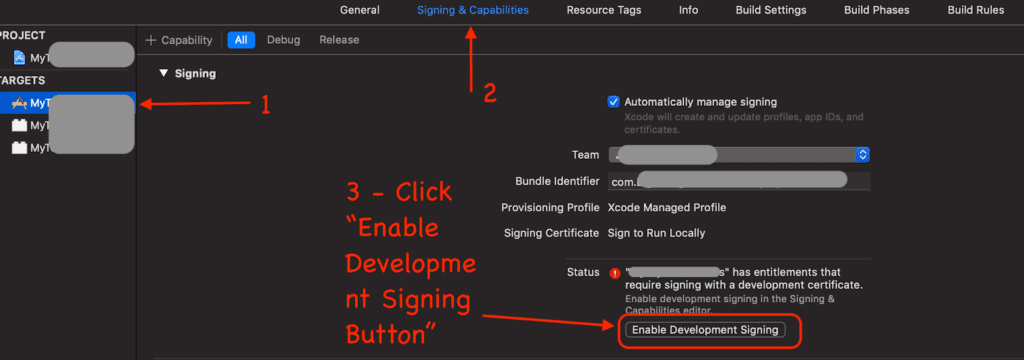
Step 4: Handle Signing Issues
- Go to Signing & Capabilities
- Add your Apple ID if required
Comparison of Testing Methods
| Method | Difficulty | Speed | Best For |
|---|---|---|---|
| Expo Go | Easy | Very Fast | Beginners |
| React Native CLI (Android) | Medium | Fast | Custom native features |
| React Native CLI (iOS) | Medium | Moderate | iOS-specific testing |
Wireless Testing (Without USB)
The other way is to test your app wirelessly.
For Android:
adb tcpip 5555
adb connect YOUR_IP_ADDRESS
Requirements:
- Same Wi-Fi network
- Initial USB connection required
Common Issues and Fixes
App Not Loading
Make sure Metro Bundler is still running:
npx react-native start
Network Error
- Step one: Verify that both devices are connected to the same network
- Refer to local IP instead of localhost
Slow Performance
- Disable background apps on your phone
- Release build for performance
Best Practices for Testing
Here are some tips for testing a react native app on my phone.
- Test on multiple screen sizes
- Test in light and dark mode
- Test offline behavior
- Experiment with real-life scenarios (low battery, bad network)
Final Thoughts
Real-time feedback is a key aspect of fast-paced development cycle when building high-quality apps. Whether you choose Expo Go for quick setup, or React Native CLI for more fine control over your app, the whole process is simple enough once you’ve at least done it once or twice.
If you need learning mobile app development React Native is best chance to master real-device testing, it will save hours of debugging and delivering a smoother user experience.
Suggested Reads
Next.js vs React (2026): Everything a developer needs to know.
1 thought on “How to Test React Native App on My Phone (Beginner Friendly Tutorial) 2026”